
Google Review QR Code Generator
Make a free Google review QR code in seconds. Paste your review link or Place ID, then download the code or print a ready-made “Review us on Google” sign — customers scan it and land straight on your review form, with no searching for your business.
Where do I find my review link?
- Sign in to Google, search your business name, then choose Ask for reviews (or Get more reviews) on your Business Profile and copy the
g.page/r/…/reviewlink. - No access to the profile? Look up your business in Google’s Place ID Finder and paste the Place ID here — we build the review link for you.
Paste your review link to see your QR code
Free, no sign-up, no watermark. The QR code opens your link directly, so it never expires.
Want it on your counter instead of paper?
Paste your link above first and it carries over automatically.
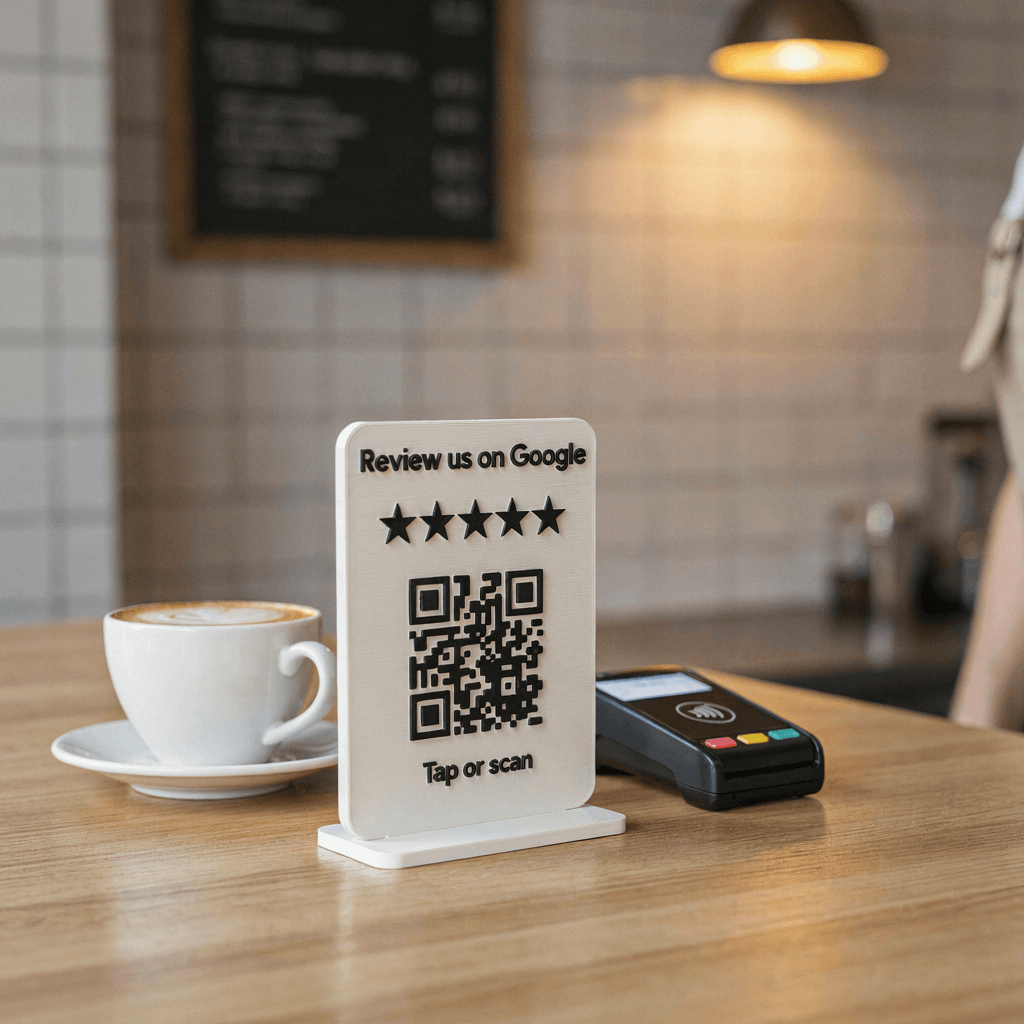
Google Review NFC Stand
From $24.98 each
Customers tap their phone or scan the raised QR code. Your logo and colors, NFC chip sealed inside, base included.
Design your review stand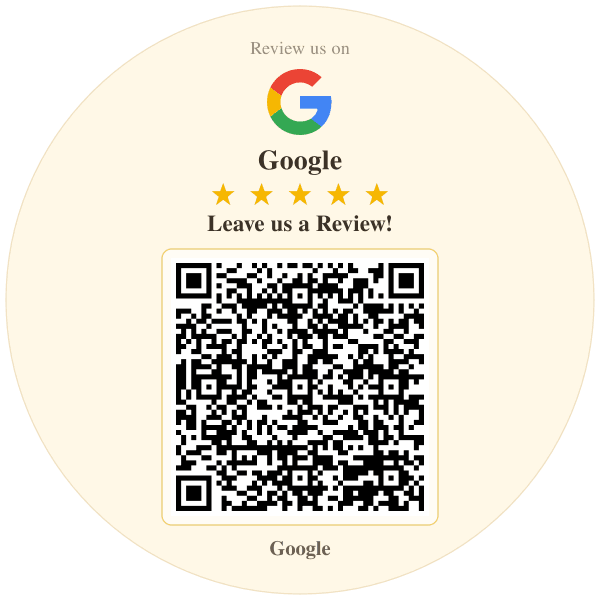
Google Review QR Code Stickers
Waterproof vinyl “Review us on Google” stickers for doors, tables, menus and takeout bags — any size, any quantity.
Order review stickersHow to make a QR code for Google reviews
A Google review QR code is a QR code that opens your business's “write a review” form on Google. Here's how to make one in under a minute:
- 1
Copy your Google review link
In your Google Business Profile choose “Ask for reviews” and copy the g.page/r/…/review link — or paste your Place ID and we build the link for you.
- 2
Paste it into the generator
Your QR code appears instantly. Add your business name and pick a color for the printable sign.
- 3
Test, then download or print
Scan the preview with your phone to check it opens your review form, then download a PNG or SVG, print the sign, or print four counter cards per page.
How to find your Google review link
The generator needs one thing: the link that opens your review form. This page also works as a Google review link generator— paste a Place ID and copy the finished link for emails and texts. There are three ways to get it:
From your Business Profile (fastest)
Sign in to the Google account that manages your business, search your business name on Google, and choose “Ask for reviews” (sometimes “Get more reviews”). Copy the short link — it looks like g.page/r/CdA1b2…/review. This link opens the review form directly, so it's the best one for a QR code.
From the Google Maps app
Open Google Maps, tap your profile picture, open your Business Profile and choose “Ask for reviews” to share the same link. A normal “Share” link from Maps opens your listing instead, which costs customers one extra tap — the generator warns you if you paste one.
From your Place ID (no profile access needed)
Find your business in Google's Place ID Finder, copy the ID (it usually starts with ChIJ) and paste it here. We turn it into Google's official review link, search.google.com/local/writereview?placeid=…, which opens the review form for that place.
Place ID review links follow this pattern:https://search.google.com/local/writereview?placeid=YOUR_PLACE_ID. Find your ID withGoogle's Place ID Finder.
Where to put your Google review QR code
Put the code where customers are happy and already holding their phone — right after they pay, eat or see the finished job.
Checkout counter
Next to the card reader, where customers already have their phone out.
Tables & table tents
Print the 4-card layout, fold or frame the cards and place one on each table.
Bags, boxes & receipts
A small QR sticker on takeout bags or shipping boxes reaches customers at home, when they have time.
Front door & window
Catch people on the way out. Print it larger — a door sign is scanned from further away.
Business cards & invoices
Service businesses (cleaners, contractors, salons) get the most reviews right after the job is done.
Emails & texts
On screens, skip the QR code: paste the review link itself (use “Copy link” above) into follow-up emails and texts.
What size should a Google review QR code be?
Print roughly 1 inch of QR code per 10 inches of scanning distance, keep it dark on a light background, and leave a white border around it. The printable sign already handles the border and contrast.
| Where | QR code size | Scan distance |
|---|---|---|
| Receipts, business cards, small stickers | 1 in (2.5 cm) | Held in hand |
| Counter cards & table tents | 2–3 in (5–7.5 cm) | Up to 2 ft |
| Full-page sign on a wall or desk | 4–5 in (10–13 cm) | 3–4 ft |
| Door or window poster | 6 in+ (15 cm+) | 5 ft+ |
Printed sign, QR stickers or a Google review stand?
The free sign is the quickest start. When you want something that lasts on a busy counter, we make two physical versions in our Los Angeles workshop — and your review link carries over from the generator.
| Option | How customers use it | Durability | Best for | Price | Link |
|---|---|---|---|---|---|
| Free printable sign | Scan with the camera | Paper — best laminated or framed | Trying it out today, temporary spots | Free | Make it above |
| QR code stickers | Scan with the camera | Waterproof vinyl, wipe-clean | Doors, tables, bags, boxes, menus | Priced by size & quantity | Order stickers |
| NFC review stand | Tap the phone or scan the QR code | Rigid 3D printed plaque + base | Checkout counters, reception desks | From $24.98 | Design a stand |
How to get more Google reviews with your QR code
- Ask in person, then point to the code.“Would you mind leaving us a quick review? Just scan this.” works far better than a sign on its own.
- Ask every customer. Google's policy doesn't allow asking only happy customers (review gating), so keep the code visible to everyone.
- Don't offer rewards. Discounts or gifts in exchange for reviews break Google'suser content policy and can get reviews removed.
- Reply to reviews. Answering reviews — good and bad — shows future customers you're listening. Google's owntips to get more reviews recommend it too.
- Make it effortless. One tap beats one scan: anNFC review standopens the review form when customers simply hold their phone near it.
Google review QR code FAQ
How do I get a QR code for Google reviews?
Copy your Google review link from your Business Profile (“Ask for reviews”) or find your Place ID, paste it into the free generator on this page and download the QR code as a PNG or SVG — or print the ready-made “Review us on Google” sign. It takes under a minute and needs no account.
Is this Google review QR code generator really free?
Yes. There's no sign-up, no watermark and no limit on how many codes you make. The QR code and the printable sign are created in your browser, and you can use them commercially.
Does the QR code expire?
No. It's a static QR code: your review link is stored in the code itself, not behind a redirect we control, so it keeps working as long as your Google review link does. Short g.page review links and Place IDs are stable; Google only changes a Place ID in rare cases such as a business moving.
What's the difference between a review link and a Maps link?
A review link (g.page/r/…/review or search.google.com/local/writereview?placeid=…) opens the star-rating form straight away. A Maps or share link opens your listing, so the customer has to find and tap “Write a review” first. Fewer taps means more finished reviews, so use the review link for QR codes.
Can I make a Google review QR code without access to the Business Profile?
Yes. Look up the business in Google's Place ID Finder, copy its Place ID and paste it into the generator. We build the official writereview link from it. This is handy for agencies and marketers setting up signs for clients.
How big should I print the QR code?
A good rule is one inch of QR code for every 10 inches of scanning distance. That's about 1 inch (2.5 cm) on a receipt or business card, 2–3 inches on a counter card and 6 inches or more on a door. Always test the printed code with a phone before printing a batch.
Is it OK to ask customers for Google reviews with a QR code?
Yes — Google encourages businesses to ask for reviews. What Google's policy doesn't allow is offering discounts or gifts in exchange for reviews, or only asking happy customers (review gating). Show the code to every customer and you're within the rules.
What's better, a QR code or an NFC review stand?
A QR code works with every phone camera and costs nothing to print. An NFC stand adds tap-to-review — customers hold their phone near it and the review form opens — and it looks more professional on a counter. Our review stand has both, so customers can tap or scan.
Turn your QR code into a Google review stand
Customers tap their phone or scan the raised QR code and your review form opens. Your logo and colors, NFC chip sealed inside, tested before it ships.