
LinkedIn QR Code Generator
Make a free QR code for your LinkedIn profile in seconds. Paste your profile link, then download the code or print business cards with your name and QR code — people scan it and land on your profile, ready to connect.
Where do I find my profile link?
- Computer: open LinkedIn, click Me → View profile and copy the address from your browser bar. It looks like
linkedin.com/in/your-name. - Phone: open your profile in the LinkedIn app, tap the … (More) button and choose to share or copy the link to your profile.
- Company page? Paste its link (linkedin.com/company/…) — that works too.
Paste your LinkedIn link to see your QR code
“Print 10 cards” fits Avery 8371 / 5371 business card sheets on US Letter. Print at 100 % (“Actual size”).
Free, no sign-up, no watermark. The QR code opens your LinkedIn link directly, so it never expires.
Hand it over instead of holding up your phone
Paste your link above first and it carries over automatically.
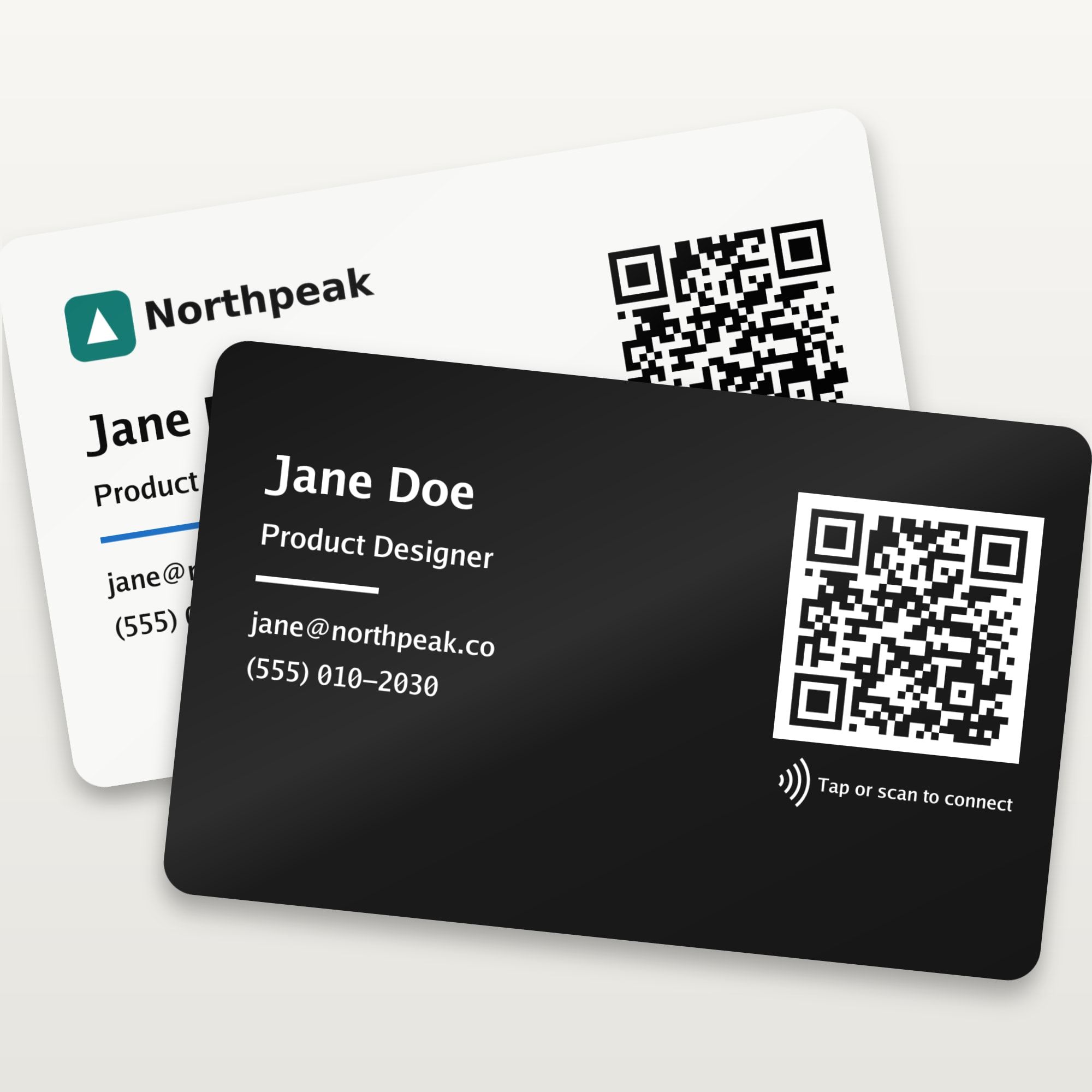
LinkedIn NFC Business Card
From $14.90
A sturdy PVC business card with an NFC chip and this QR code. People tap their phone or scan it and your LinkedIn profile opens. Your logo, white or black, no app or subscription.
Design your LinkedIn NFC card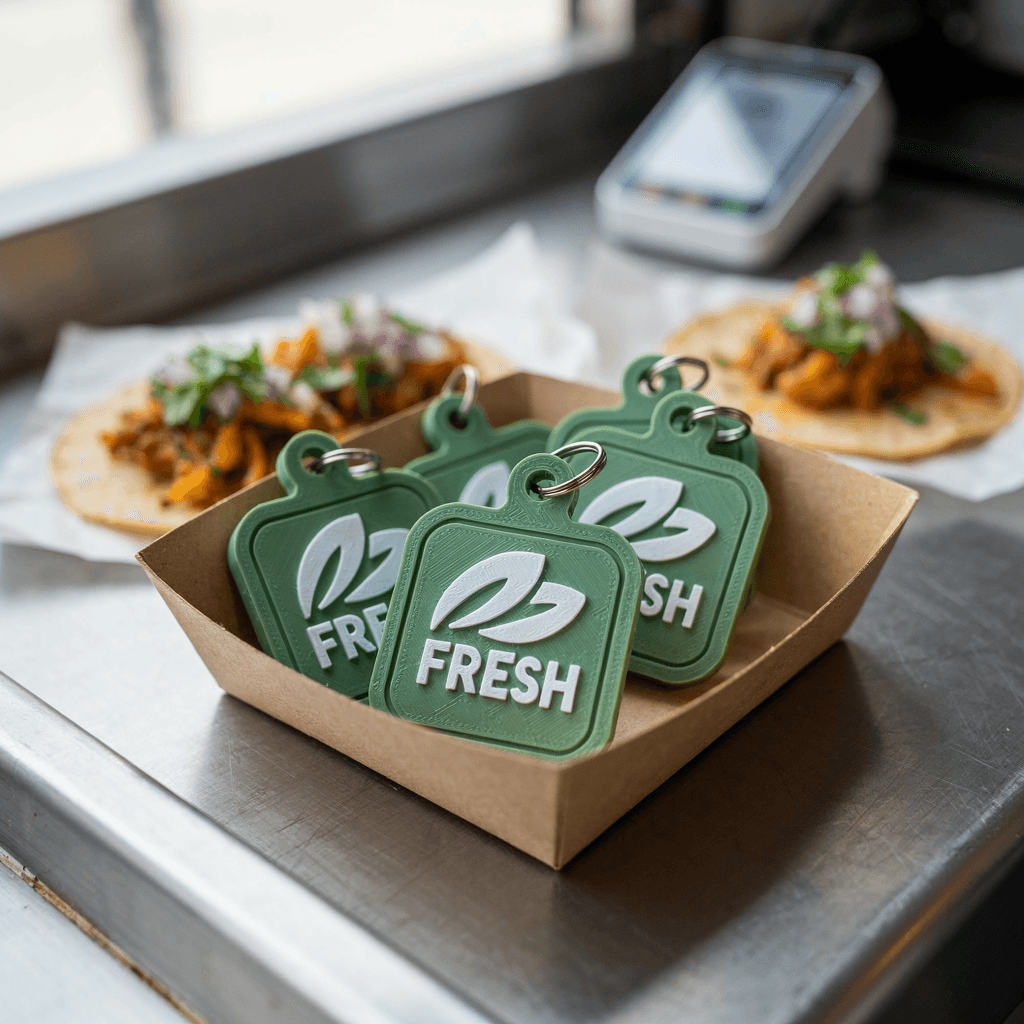
Custom Logo NFC Keychain
From $7.00 each
Your logo on a keychain with an NFC chip inside. Tap it to any phone at a conference and your profile opens — always on your keys.
Design an NFC keychainHow to make a QR code for your LinkedIn profile
A LinkedIn QR code is a QR code that opens your LinkedIn profile when someone scans it with their phone camera. Here's how to create one in under a minute:
- 1
Copy your LinkedIn profile link
On a computer click Me → View profile and copy the address (linkedin.com/in/your-name). In the app, open your profile, tap … and copy the profile link. A username works too.
- 2
Paste it into the generator
Your QR code appears instantly. We remove share-tracking codes and extra page parts so the code is small and opens your main profile.
- 3
Test, then download or print
Scan the preview with your phone camera, then download a PNG or SVG, or add your name and print 10 business cards per sheet.
How to get your LinkedIn QR code in the app
Wondering “where is my LinkedIn QR code?” LinkedIn has one built into its mobile app:
- Open the LinkedIn app on your phone.
- Tap the QR code icon in the search bar at the top.
- Choose the “My code” tab to see your personal LinkedIn QR code.
- Save it to your photos or share it — or show it on screen for someone to scan.
LinkedIn may move these buttons in app updates. The desktop site has no QR code — use the generator above.
Why make your own LinkedIn QR code?
Print-quality SVG
The app gives you a screenshot-style image. Here you get a vector SVG that stays sharp on business cards, badges, banners and slides.
Works on a computer
No phone needed. Paste your profile link on any device, including for a colleague or a whole team.
Your name next to it
A bare QR code doesn't say whose it is. The business card layout adds your name, title and a call to action.
Any camera can scan it
It's a standard QR code with your profile link inside, so any phone camera opens it — no LinkedIn scanner needed.
How to find (and shorten) your LinkedIn profile URL
- On a computer: click Me at the top of LinkedIn, thenView profile. Your profile URL is in the browser's address bar.
- In the app: open your profile, tap the … (More) button and share or copy the link to your profile. The generator strips the tracking codes the app adds.
- Make it short first: on your profile choose Edit public profile & URL and set a custom URL like linkedin.com/in/jane-doe. A shorter link makes a simpler QR code that scans faster — and it reads better printed on a card.
How to add LinkedIn to your business card
There are three ways to put LinkedIn on a business card. Many people use two: the printed link for people who type, and a QR code (or NFC tap) for everyone with a phone in hand.
1. Print your profile link
Use the short form without https:// — linkedin.com/in/your-name. Set a custom URL first so it isn't a string of numbers.
2. Add a LinkedIn QR code
Download the SVG above and give it at least 0.8 in (2 cm) on the card, with a white border around it. Or print our ready-made business cards — 10 per sheet.
3. Use an NFC business card
An NFC card opens your profile when someone holds their phone near it — no scanning, no app. Ours print the QR code too, for phones without NFC.See NFC options.
What size should a LinkedIn QR code be?
Print roughly 1 inch of QR code per 10 inches of scanning distance, dark on a light background, with a white border.
| Where | QR code size | Scan distance |
|---|---|---|
| Business card, resume header | 0.8–1 in (2–2.5 cm) | Held in hand |
| Name badge, table card | 1.5–2 in (4–5 cm) | Up to 2 ft |
| Slide on a screen, desk sign | 4 in+ (10 cm+) | 3–6 ft |
| Poster or banner | 8 in+ (20 cm+) | 8 ft+ |
Where to use your LinkedIn QR code
Business cards
The most common spot. Print it at least 0.8 in (2 cm) wide next to your name.
Name badges & lanyards
At conferences and career fairs, people scan your badge instead of typing your name.
Resume & CV
A small code in the header lets recruiters jump from a printed resume to your full profile.
Last slide of a talk
Put it on the closing slide so the audience can connect while you take questions.
Booths & signage
Trade-show tables, posters and roll-up banners — print it larger for distance.
Email signatures
On screens, skip the QR code and paste the profile link itself (use “Copy link” above).
Paper card, NFC business card or NFC keychain?
The free printable cards are the quickest start. When you want something that lasts in a wallet and impresses at a meeting, we make physical versions in our Los Angeles workshop — and your LinkedIn link carries over from the generator.
| Option | How people use it | Durability | Best for | Price | Link |
|---|---|---|---|---|---|
| Free printable cards | Scan with the camera | Paper card stock | Trying it today, events this week | Free | Make them above |
| LinkedIn NFC business card | Tap the phone or scan the QR code | Rigid PVC, UV printed | Networking, sales, recruiting | From $14.90 | Order a card |
| NFC keychain | Tap the phone | 3D printed, chip sealed inside | Always on your keys | From $7.00 | Design a keychain |
LinkedIn QR code FAQ
How do I make a QR code for my LinkedIn profile?
Copy your profile link (linkedin.com/in/your-name), paste it into the free generator on this page and download the QR code as a PNG or SVG — or add your name and print it as business cards. It takes under a minute and needs no account.
Where is my LinkedIn QR code in the app?
In the LinkedIn mobile app, tap the QR code icon in the search bar and open the “My code” tab. You can save or share it from there. The desktop site has no QR code, which is why a generator like this one is handy for printing.
Is this LinkedIn QR code generator free?
Yes. There's no sign-up, no watermark and no limit. The QR code is made in your browser, and you can use it on business cards, resumes, badges and slides.
Does my LinkedIn QR code expire?
No. It's a static QR code: your profile link is stored in the code itself, not behind a redirect, so it works as long as your LinkedIn URL stays the same.
Will the QR code still work if I change my LinkedIn URL?
No. If you change your custom public profile URL, the old link stops working, and so does a QR code that contains it. Set your custom URL first, then make the code. If you do change it later, make and print a new code.
Can I make a QR code for a LinkedIn company page?
Yes. Paste the company page link (linkedin.com/company/your-company) instead of a profile link. School and showcase pages work too.
Can people without the LinkedIn app scan it?
Yes. Any phone camera reads the code. With the app installed your profile opens in LinkedIn; without it, it opens in the browser and shows what your public profile settings allow.
How do I add LinkedIn to my business card?
Print your short profile link (linkedin.com/in/your-name), a QR code at least 0.8 in (2 cm) wide, or both. For a card people can tap, an NFC business card opens your profile when they hold their phone near it, with the QR code printed as a backup.
Turn your QR code into a LinkedIn NFC business card
Tap a phone or scan the QR code and your profile opens. Your logo UV printed on white or black PVC, programmed and tested before it ships. No app, no subscription.
Order your LinkedIn NFC cardRelated tools & products
LinkedIn is a trademark of LinkedIn Corporation. AVDEB is not affiliated with, sponsored or endorsed by LinkedIn.